
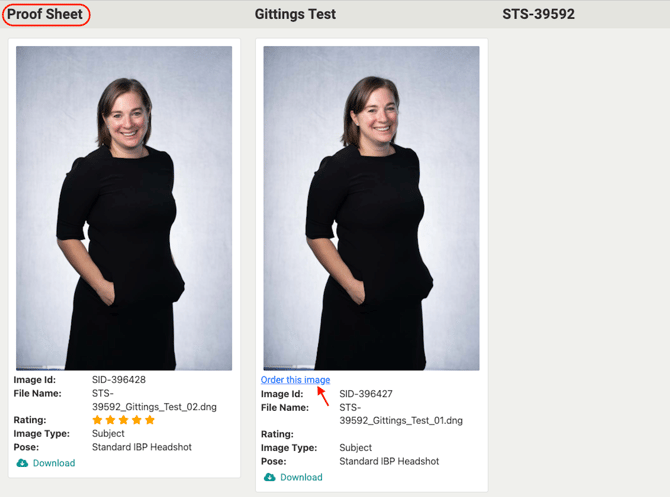
Step 1: Click on "Order this image" on the image you would like to use as a replacement or purchase as an Additional image under the Proofs (if you click replace the original select will be deleted from your portal. If you want both images select Additional.)
Step 2: A new order can be created from this pose to either replace the final images for your current primary pose selection or to create an additional set of alternate pose images. Click on the drop down under "New Selection Type" and select "Additional" or "Replace". Please fill in the information below to add this item to a new order. Additional pricing may apply and can be reviewed before submitting your order.
.png?width=670&height=552&name=image%20(1).png)
Step 3: You can view your selected image under the pose (you can only select a pose that has not been selected previously) > Click "Submit New Order" (There are more steps...If you stop here your order will not be placed...continue to the end so ensure the order is placed.).
.png?width=670&height=463&name=image%20(2).png)
Step 4: In your Order Summary you will see the Session ID number (SID-), pricing, Rush options, Delivery date, total pricing > Submit Order
.png?width=670&height=214&name=image%20(4).png)
Step 5: You will be able to see your order under "Final Images" along with the Final image (if it is an additional image). If it is a replacement image you will only see the new delivery date with no final image),
.png?width=670&height=144&name=image%20(3).png)